Checking that your DataTill is correctly setup to use the Cancellation Module.

Due to the recent introduction of the Cancellation module, a bug was picked up on the cron job. This bug did not take into account existing data from the old Expiry module. Thus, previously expired customers were being reset when their database variables did not meet the new Cancellation module requirements.

This bug has now been fixed and a migration has been run to include a new defualt setting under the Billing Setup. This setting is date enabled to specify from which date should customers be reset (that were previously marked for cancellation but never approved for cancellation) to active.

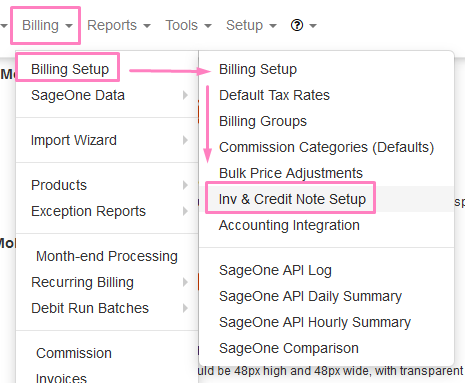
To check this setting, users can navigate to Billing > Billing Setup > Billing Setup again > under the Customer & Radius Account Cancellation Approval Settings menu > Automated Cancellation Reset Start Date – enter date here.

(more…)

How to top-up your account

How to top-up your account


Customers who run out of their bundle have the option to either manually top-up their account or to enable the auto-top up functionality.  This can be done in the following ways: 

  • The customer can submit a top-up request to their ISP.
  • The customer can do top-ups or configure auto-top up settings from their online portal.
  • The customer can do top-ups, configure auto top-ups settings or view a list of previous top-ups from the customer mobile app (if enabled with their ISP).

(more…)

Suspensions & Cancellations – setting up the notifications.

Webinar:  Customer Suspensions Webinar: Customer Cancellations Videos:  Suspensions Overview Video:  Cancellations overview   Users can customise which notifications are enabled between Suspensions & Cancellations and the SMS notification start and end times. The setup is located by navigating to Setup > Notification > Notification Settings group box. The user can choose to enable Account Read more…

ICASA Regulations Governing Data

ICASA Regulations Governing Data Usage

New regulations require Telecommunication Service Providers (not only mobile carriers) to benefit customers in terms of the following:

Usage notifications:

All licensees are required to send usage depletion notifications to consumers when their usage is at 50%, 80% and 100% depletion levels. This will enable consumers to monitor their usage and control spend on communication services.

Rollover of data:

All licensees are required to provide an option for consumers to roll over unused data. This is to ensure that consumers do not lose unused data as is the current practice.

Transfer of data:

All licensees are required to provide an option for consumers to transfer data to other users on the same network.

Outof-bundle billing:

All licensees are no longer allowed to charge consumers out-of-bundle rates for data when their data has run out without the consumers’ specific prior consent. This will ensure that consumers do not default to out-of-bundle data charges which are significantly higher than in-bundle charges.

Non-compliance with respect to these regulations may result in Fines of up to R 5 000 000.

See the information below for more detail on how to enable the required settings. 

(more…)

How to transfer data between customers

How to transfer data 


Customers have the option to transfer their data to other customers or radius accounts.  The data transfer can only take place for customers who are on the same network and who have capped packages.  To enable this function, the ISP will need to enable the data transfer toggle switch found under radius settings.  

For the customers:

Who can transfer data? 

  • Only customers who are on capped packages can request to have data transferred.
  • Data can only be transferred to other customers who are on capped packages. 
  • In other words: 
    • Capped to capped = Yes
    • Uncapped to capped = No
    • Capped to uncappedNo
    • Uncapped to uncapped =No

(more…)

How to set up usage notifications

How to set up usage notifications

Usage notifications can be set up in two different ways: 

  1. You can set up and apply global usage notifications settings to all your active customers
  2. or you can add individualised usage notifications settings to your customers. 

1.  Global settings for all customers

We have added global settings which can be applied to all customers on capped packages as well as prepaid customers.  To set this up, go to the setup menu and then click on the notification option.  

(more…)

Mass Customer ID Password Reset Tool

DataTill has introduced a new tool to send out the password reset email link to multiple customers at once.

To enable this tool the user must navigate to Setup > System > Debugging > set the ‘Show Mass Password Reset Tool’ toggle button to Yes.

Thereafter,  the user will see the menu available when navigating to Tools > Mass Password Reset.

(more…)

New Portal and Mobile App Speed Tests Functionality

DataTill has now introduced the ability to perform speed tests via the Portal login and the Mobile App.

Note that for speed test feature to work properly, the DataTill server’s php settings must be configured to allow at least the following values or higher:
  • upload_max_filesize = 20M
  • post_max_size = 20M
Two settings have been added to enable or disable customer and public access to speedtests. These settings can be accessed by navigating to Setup > Device Monitoring > See screenshot below.
Note, that the mobile app will always have access to do speedtests

Users can log into the Portal and run a speed test. A new button has been added to direct users to this functionality. Refer to the example in the screenshot below. (Note, a speed test can also be run from within the customer mobile app.)

(more…)

Suspensions & Cancellations – New Features and Improvements v 1.3.03

Webinar:  Customer Suspensions

Webinar: Customer Cancellations

Video:  Suspensions Overview

Video:  Cancellations overview


Bulk Suspensions

Users now have the ability to set a bulk list of customers to queue for suspension.

Thsi can be done by navigating to the menu for  Accounts Workflow /Suspensions. Her the user can tick the relevant customers and bulk approve them to queue for suspension.

Note, a tooltip has been added to the Approve Suspension button and it has been coloured to red.

(more…)

Improved Look And Feel Of ‘Generate Debit Batches’ and ‘Monthly Processing’ Screen

We improved the “Generate Debit Batches” screen and the “Monthly Processing” screen to have the same look and feel as the rest of the system.

This has been released in v.1.3.03


Webinar:  Month-end Billing Run

Video:  Billing Run (Part 1)

Video:  Billing Run (Part 2)


Monthly Processing screen changes:

  • Force date fields to be read-only on screen – with the only modifiable field being the Billing Period. Like in the Billing Settings themselves – date fields will change based on this range.
  • Confirming a billing period will automatically save the current billing settings noted on the screen – that way a person getting ready to process a new month won’t need to update the billing settings first. This makes the UI more forgiving and intuitive in terms of workflow.
  • Change user permissions for this screen to be inline with permissions to change the identical date fields under the billing settings screen.

(more…)

New Radius Session Diagnostics Screen.

A new screen has been added to troubleshoot radius sessions that have issues.

The list of issues detected and displayed are as follows:

  • Sessions with no ip (0.0.0.0) assigned. (These radius sessions should be disconnected to force a new IP assignment.)
  • Sessions that have duplicate IP’s assigned – two or more active sessions using the same IP address.  (These radius sessions should be disconnected to force a new IP assignment.)
  • Duplicate IP Pool allocated IP’s – Two pool entries allocated to the same mac address on the same NAS. (The radius sessions should be disconnected to force a new IP assignment, and stale pool entries will then auto expire.)
  • Stale IP Pool entries – Pool entry allocated where the radius session is no longer active. (This will be cleared automatically as pool entries expire after 2 hours of inactivity.)
  • UnallocatedIP Pool entries – Pool entries that match an active radius session but has not been assigned. (This may be valid in some instances, as not all radius sessions will use pools, and static radius ip ranges may overlap pool ranges.)
  • Wrong Pool IP’s assigned – Radius sessions where an IP address out of the wrong pool has been assigned. (These radius sessions should be disconnected to force a new IP assignment.)


(more…)

Changes to the Suspension and Cancellations Module v1.3.02


Webinar:  Customer Suspensions

Webinar: Customer Cancellations

Video: Suspensions Overview

Video:  Cancellations overview


Some exciting changes have been made to the Suspension and Cancellation Module. These changes will improve the user experience and make navigating through the relevant menus easier to manage.

Menu Consolidation:

Previously under the Billing tab the Account Suspensions and Account Cancellation menu items were listed here. DataTill has now consolidated these two menu items. It is now located under Billing > Accounts Workflow. Once the page loads the Cancellations and Suspensions quick filter dropdown boxes are located on the left. The user needs to click on either option to further expand the menu.

(more…)

Mailbox Processing Rules with invalid matches.

In previous versions users were able to add Mailbox Processing Rules with invalid matches. This menu can be found by navigating to Setup > System Settings > Mailbox Processing Rules.

Whether editing an existing rule or adding a new one, at least one match option must be set to ‘Yes’. If not, validation will occur to advise the user to select at least one valid match.

(more…)