Diagnose Offline Devices & Network
Note: that many of the functionality you see below requires all your network devices to be loaded onto DataTill, this excludes client radios.
View Offline Clients:
Dashboard:
Go to Tools->Dashboard.
In the screenshot below you can see at a glance how strong winds and rain have affected the network.

Wireless Connections:
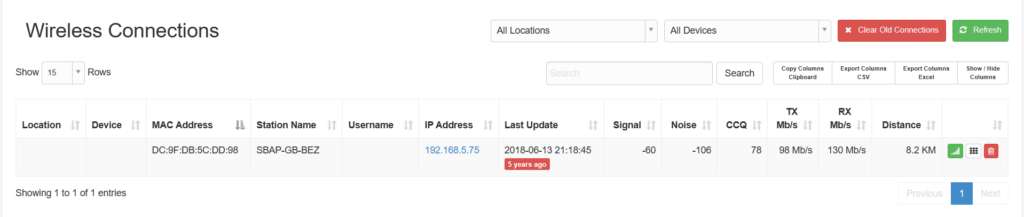
Go to Devices->Wireless connections.
This is all the wireless connections in the network, which includes client connections. here is an example of a wireless connection.
NAS Users:
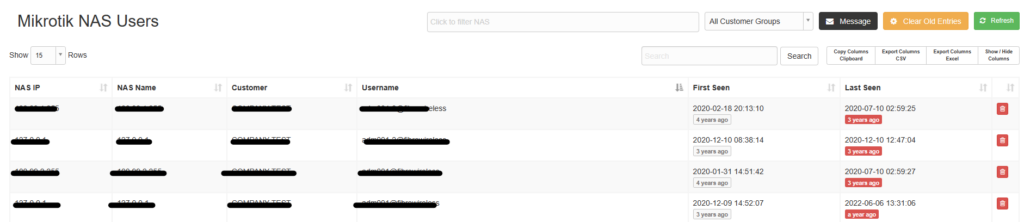
The Mikrotik NAS users section lists all users who have previously authenticated on a router and shows their last seen status. The table can be sorted by any column using the up/down arrows. To access it, go to Devices → Mikrotik NAS Users.
Check the Customer’s Radius Users:
Go to Data Usage in the Edit Customer Menu.
The image below shows the overall usage for the customer. You can click on the menu on the left to select the individual users. The Radius Attributes are listed at the bottom for debug purposes.

Customer Usage Overview:
Example:

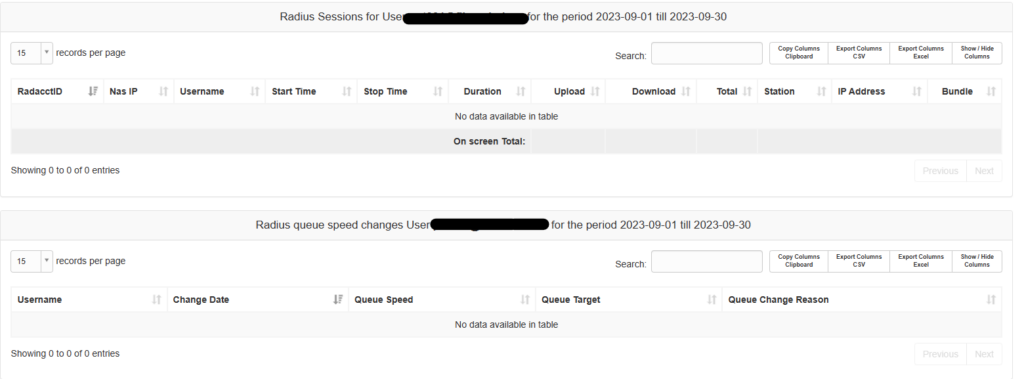

Individual User Usage:
Go to Active Data sessions in the edit customer menu, click on view to see a list of active data sessions.
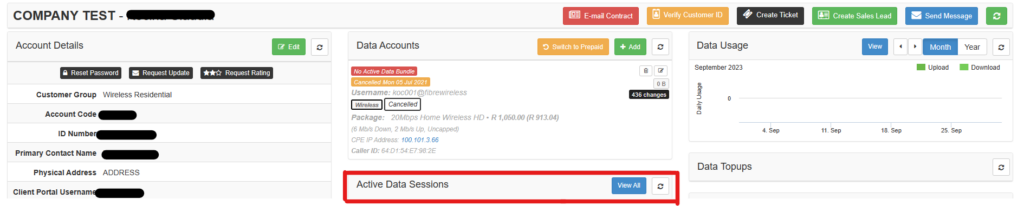
Active Radius Sessions:
Example:
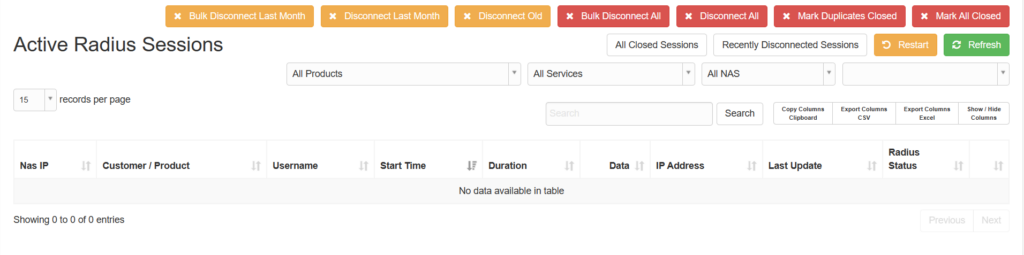
Filter NAS Users by Device:
NAS users can be filtered by Network Device’s (Router’s)
Set the Show Rows # to All, so that you can see all the users.
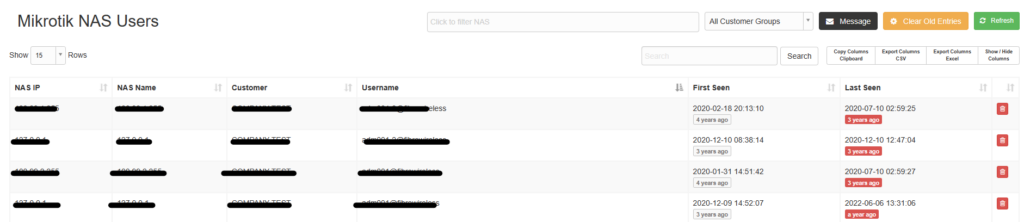
Mail Filtered Users:
First Complete the Above steps.
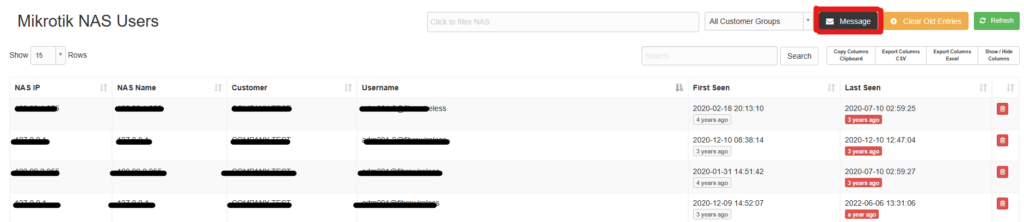
Click on the Black Message button. This will allow you to send a message to all the customers shown. I.e., message all the customers where a highsite is down.
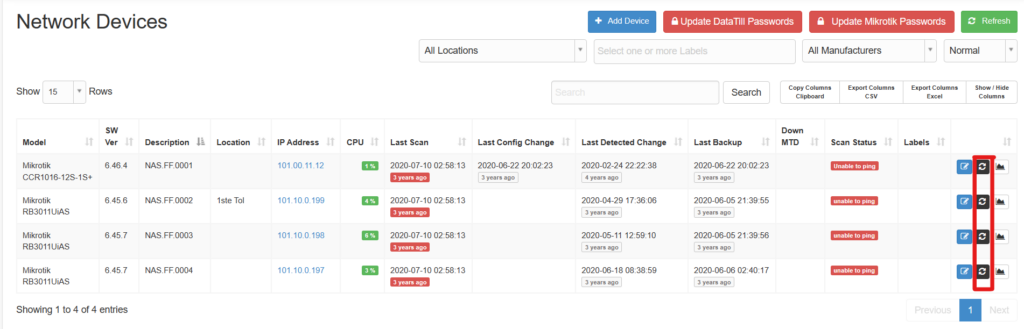
Check Network Devices Offline:
This shows internal devices configured within each router’s net watch section.
Click on the Black Button to rescan all the devices. This process does get automatically get run in the background, its frequency depends on the cron job settings.
Check Wireless signal Distribution.
Go to Devices -> Wireless Signal Spread.
Here you can see the quality of all the clients’ connections to a device on a high site.
This makes it easy to see if your device needs to be realigned etc.
Example:
