Automated backups regularly save your data at scheduled intervals, reducing the risk of loss from accidents or technical issues. They act as a digital safety net, allowing you to restore information if something goes wrong.
Automated Backups video: https://youtu.be/5LAcK_xbGD4
Blog: Support for SFTP backups
Blog: Support for LFTP backups
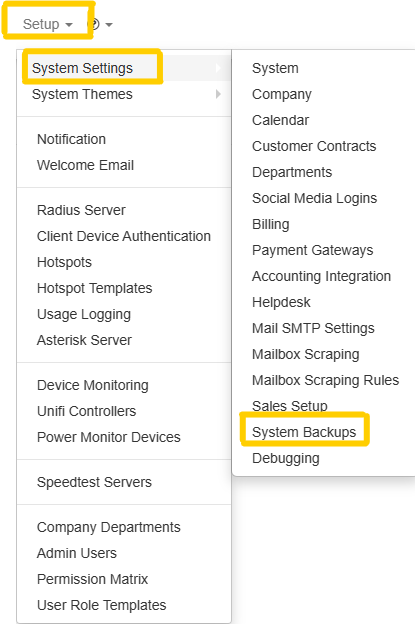
Datatill has the functionality to do automated nightly backups and to copy these offsite. To go to the backup settings:
Go to Setup > System Settings> System Backups
Note: Backups should be managed by the Customer and the backups server should be copied offsite every night, via FTP or SFTP.
To configure, follow the screenshot below:

Ensure the backup working location is a permanent folder—avoid using /tmp/, as it’s often cleared on server reboot. Ideally, create a dedicated backup folder on a separate partition or disk, noting that files here are overwritten nightly, so it’s crucial to copy them offsite. Offsite transfers can be done via FTP or SFTP, with a subfolder created for each day of the week to maintain seven distinct backups. Use the “Test FTP Settings” button to confirm connectivity and verify that the system has the necessary permissions to upload files and create folders at the destination.

To receive backup notifications, subscribe to “System Backups” under your personal profile. You’ll get an email, SMS, or Slack alert after each backup, detailing its outcome.

You can also view your DataTill backup results online:
Go to: yourdatatilldomain/about/backups.

Clicking the blue button reveals the cause of any errors, if present, and provides detailed information on each backup step, including time taken and file sizes